Adore24 Documentation Center
Volunteering
Last Updated:
February 17, 2024
When deciding what hours to volunteer for adoration, you are likely to spend much time on the schedule page. it is set up to make browsing open hours and volunteering easy.
1. Navigate to the Schedule Page
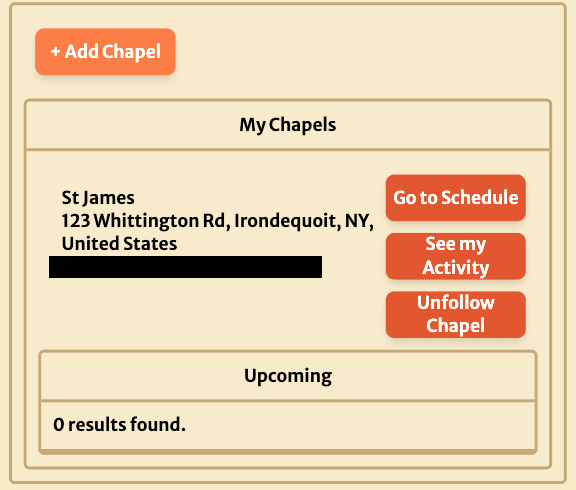
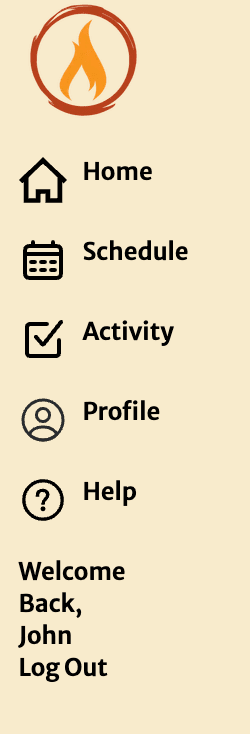
There are two ways to reach the schedule page for a chapel. The first is to click "Go to Schedule" button on one of the chapels you have joined on the homepage. The second is to click the Schedule icon on the Navigation Bar. On the desktop it looks like the below.
And it is the calendar icon on mobile in the below image.

2. Viewing the Schedule
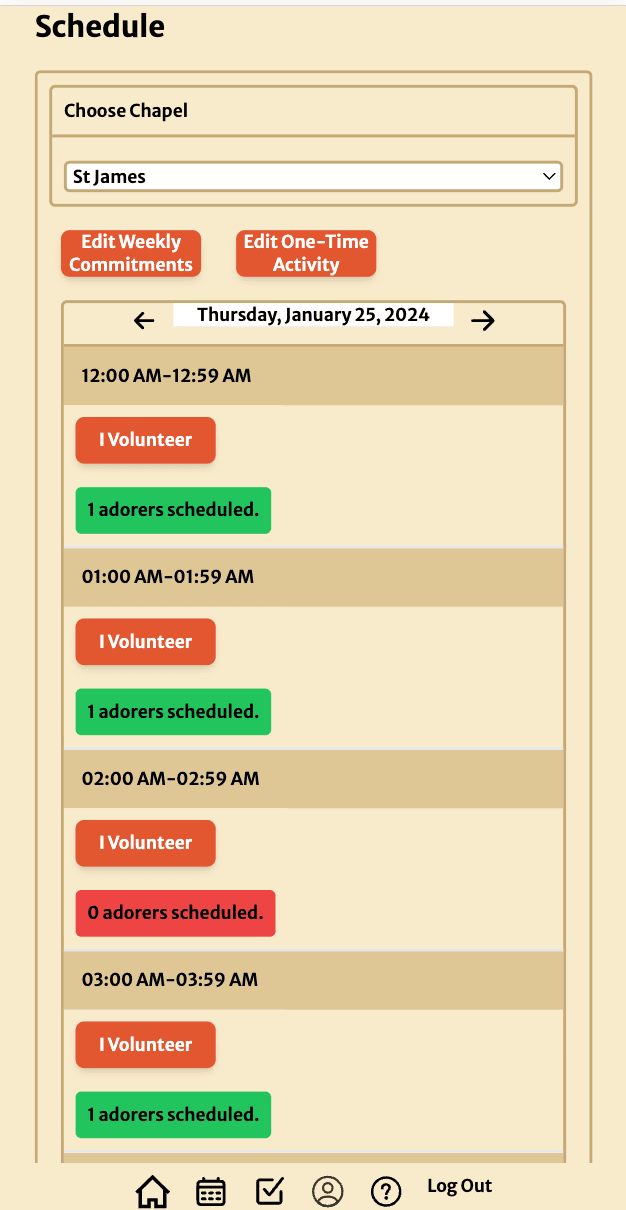
This is the schedule view. At a glance one can see how many people are volunteered for each hour of the day. There are a couple of controls that help navigate around the schedule. At the top is a dropdown to select which chapel schedule you'd like to view.
Below, the current date will be displayed when a chapel is selected. There are arrows to the left and right of the date to change the date you are viewing.
3. Adding a One-Time Commitment
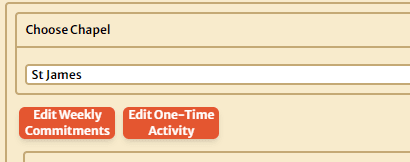
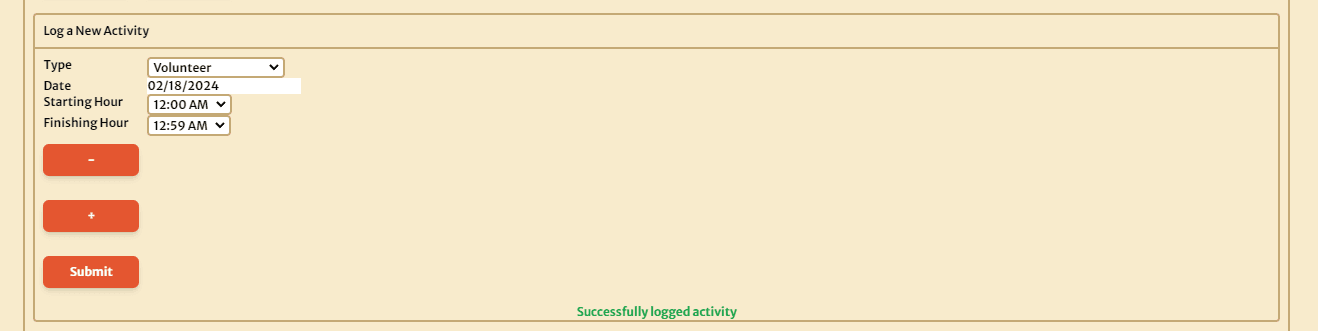
If you would like to sign up for a single volunteer slot on a specific date, there are two ways to do this. The first way is to use the "Edit One-Time Activity" button beneath the "Choose Chapel" dropdown. Click that button, leave the "Volunteer" option selected for the "Type" dropdown, then select the date, start time, and end time for the slot you would like to volunteer for. Once the commitment is submitted, the message "Successfully logged activity" will briefly display below.
The second way to make a one-time commitment is by using the schedule itself. You will notice that each time slot has an "I volunteer" button. You can navigate to the desired date, scroll down to the time slot you want to volunteer for, and click the button in that slot.
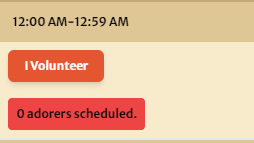
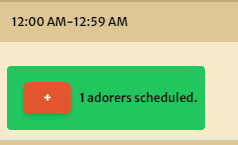
Once you have volunteered for a time slot, the "I Volunteer" button will disappear, and you will now see a "+" button instead.
4. Adding a Weekly Commitment
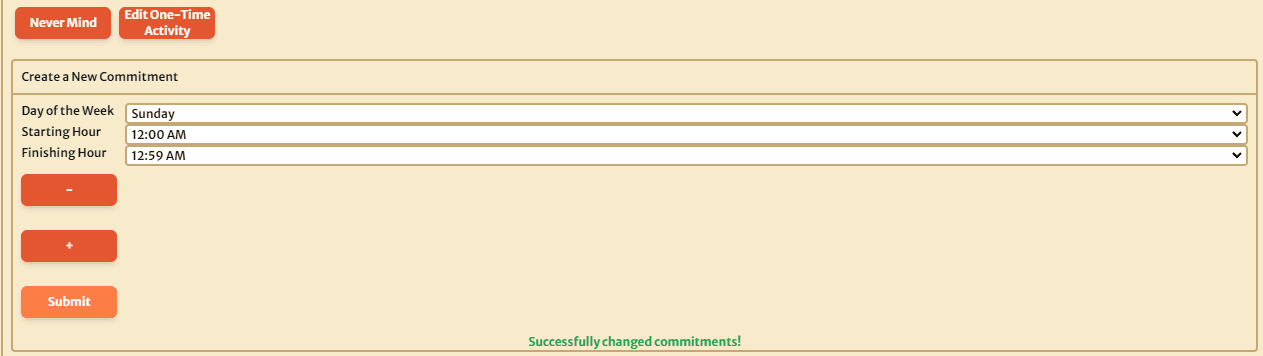
If you would like to volunteer for a time slot on a weekly basis, you must click the "Edit Weekly Commitments" button below the "Choose Chapel" dropdown, next to the "Edit One-Time Activity" button.
The form will have dropdowns to select a day of the week, a starting hour, and a finishing hour. Once the desired day and times are selected, clicking the submit button will add the weekly commitment to your account. When a commitment has been added, the message "Sucessfully changed commitments!" will appear at the bottom of the form.